
Inside the box
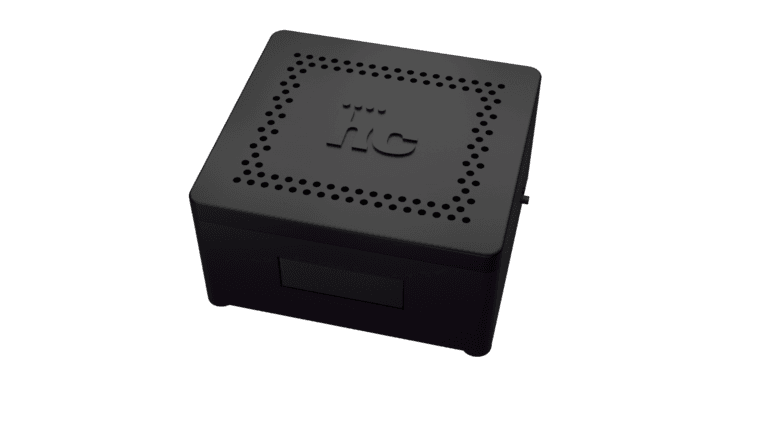
Homecloud Cube – your digital world in a box.
Make space for it next to your Internet Router
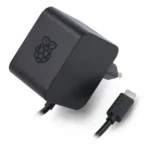
Power Adapter – Plug it in to wall socket (I love UPS) and to USB-C port located at back of Cube.
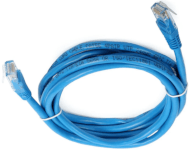
Network cable – Plug one end to Internet router and other to network port of Cube.
Start Rolling
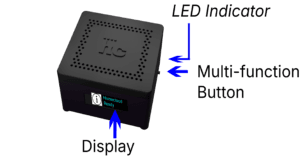
Power it ON (Just turn wall power button on).
LED indicator will turn GREEN.
Display may take up-to a minute to wake up.
Display Screen: Your Info at a Glance
The screen shows helpful messages about your Homecloud — like connection status, storage info, and more.
It automatically sleeps after 3 minutes.
Need help connecting or checking status? Just press the Multi-Function Button once to wake it up.
It shows useful info whenever you need it.

Cable In, Magic Out!
Haven’t connected your network cable yet? Now’s the time!
Plug it into your Internet router(most have network ports at back) and Homecloud (port on left side next to 4x USB ports).
Once connected, the display will start showing helpful messages.
This one confirms cable is connected correctly:

Hold for a minute and below message should start showing up when network is ready:

Let’s Get You Logged In!
In just a few seconds, the display will cycle through a message like this:https://192.168.X.X ← That’s your Homecloud’s temporary address.

✍️ Write it down or try to remember it — you’ll need it!
Now, grab your phone, laptop that is connected to same router (via WiFi or Wired) and open your web browser.
Type that address into the bar and hit enter.
🚨 You might see a warning about an “insecure connection.”
No worries — it’s totally safe. Go ahead and continue.
💥 Boom! You’ll see the Homecloud login screen.
🔐 Check the side or bottom of your Homecloud Cube —
username and password are printed right there.
Use them to log in.
Follow the wizard to complete setup.
🚫No wired network? No problem!
⚡ For the best speed and reliability, we strongly recommend using a wired connection to your router.
But no worries — until that’s set up, you can use the Wi-Fi option to get started.
📶 Just follow the next few steps to connect!
Switch on HotSpot Mode
📶 In Hotspot mode, Homecloud creates a temporary Wi-Fi network.
Just press the Multi-Function button 6 times quickly — all within 2 seconds.
(It’s easier than it sounds – just tap it fast!)
You’ll see the display confirm it:
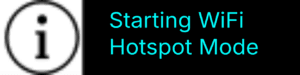
🔄 Homecloud will now restart.
Give it a few minutes — after showing some messages, it’ll create a
Hotspot network you can connect to.
Connect to Hotspot
⏳ After rebooting, give it about a minute.
The display will start cycling through messages.
Keep an eye out for this one: 👇
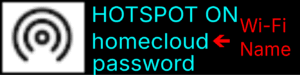
📶 Look at the display:
2nd row = Wi-Fi name (SSID)
3rd row = Password
On your phone or laptop, find this Wi-Fi and connect using the password shown.
Note: Some devices may show a warning about “No Internet.”
Just ignore it and choose to connect anyway.
🌐 Once you’re connected to ‘Homecloud’ Wi-Fi:
Open your browser and go to 👉 https://172.31.1.1
🚫 If you see a warning about an insecure connection — it’s safe to ignore.
💥 Boom! You’ll see the Homecloud login screen.
🔐 Check the side or bottom of your Homecloud Cube —
username and password are printed right there.
Use them to log in.
Then: Follow the setup wizard to connect Homecloud to your Wi-Fi router.
❓ Common Issues & Quick Fixes
🔌 Where do I plug the network cable into the router?
Most Internet routers have wired network (LAN) ports at the back. Look there and plug it into any available port.
🖥️ Nothing appears on the display after connecting the cable?
Make sure the cable is fully inserted on both ends — into the Homecloud Cube and the router.
If it’s properly connected, you’ll see a “Cable plugged in” message.
Display is blank / off?
The display goes to sleep after 3 minutes.
Just tap the Multi-Function Button (on the right side) once to wake it up.
📶 Hotspot not turning on?
Make sure Homecloud is powered on (green LED is lit) and the display is cycling messages.
Then, press the Multi-Function Button 6 times quickly — all within 2 seconds.
If done right, you’ll see a message confirming that Hotspot mode is starting.
❓ Issues during Setup Wizard
Immich phone app not connecting to Homecloud?
If you are using your local network IP (192.168.x.x) without configuring VPN, the app may show “unable to connect to server.”
Fix: Open Immich Mobile App → Settings → Advanced → Turn on ‘Allow self-signed SSL certificates’.