Follow the steps below to initialize and configure your device.
Unpack your Homecloud device and locate the three key components:
1. Homecloud Cube: Your digital vault. Place it on a clean surface next to your home router.
2. Power Adapter: The USB-C power supply (5.1V 5A). Plug it into the back of your Cube.
3. Network Cable: Ethernet patch cord to link your Cube to your internet router.
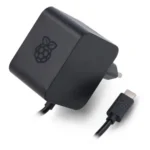
Connect the power adapter to a wall socket and plug the USB-C end into the port at the back of the Cube.
The indicator LED will turn GREEN. The front status screen display will take up to a minute to initialize and wake up.

Connect one end of the Network Cable to your home internet router (LAN port) and the other end into the network port on the left side of the Homecloud Cube.
Once connected, the screen will cycle helpful messages confirming network readiness:


Don't have a wired cable connection handy? You can activate the temporary setup Hotspot Mode:
1. Make sure your Cube is powered on and the status screen is cycling messages.
2. Press the Multi-Function Button (on the right side of the Cube) 6 times quickly (within 2 seconds).
3. The display will confirm that Hotspot Mode is starting and the Cube will restart:
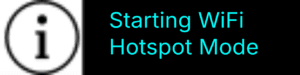
Once rebooted, the display screen will cycle the Wi-Fi credentials:
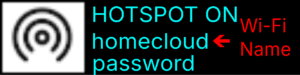
1. Open the Wi-Fi settings on your phone or laptop. Connect to the Wi-Fi network named Homecloud using the password shown on the display.
2. Open a browser and navigate to: https://172.31.1.1 (accept the certificate warning).
3. Log in with the default sticker credentials and complete the wizard to connect the Cube to your home Wi-Fi router.
